Microsoft Adaptive Hub

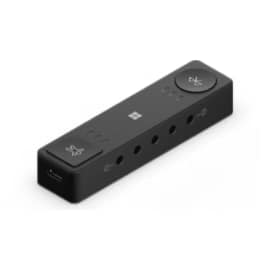
After losing the use of his hands and relying on foot controls, Steve needed a more efficient way to use mouse buttons on his Surface Pro, which does not natively support adaptive buttons. The Microsoft Adaptive Hub solved this by connecting via Bluetooth and supporting multiple adaptive inputs, profiles, and connection types. Mounted to his power chair and powered by battery, the Hub enabled easy right-clicking and scrolling, making his setup significantly more accessible.

Description

When I had lost the use of my hands and relied on my foot control as my mouse, I needed a more efficient option for using mouse buttons. My Surface Pro doesn’t have the ability to use adaptive buttons natively. The Microsoft Adaptive Hub created the bridge I needed to make my Surface more accessible.


The Hub is connected to the Surface with Bluetooth. It is an awesome little piece of hardware. Once connected to your Windows 10/11 device, you can set up Bluetooth devices like Microsoft Adaptive Buttons, hardwired adaptive buttons that use 3.5 mm connections, and other devices that use USB-C connections. The Hub supports multiple profiles if you need them. I used profiles to change how the buttons worked with Word.


The Hub is battery powered and is charged with a USB-C. This was great for me. We used Velcro to attach it to my power chair. This let me use a traditional button by my knee that we plugged directly into the Hub so I could easily right click. I also used a Microsoft Adaptive Button to support scrolling and right clicking. The Hub made my system more accessible.


Caregiver Guide

Using the Microsoft Adaptive Hub Across Windows, iPhone/iPad, and Android

This guide explains what the caregiver needs to do, what to expect, and how to troubleshoot common issues. It’s designed for real‑world caregiving situations where time, energy, and clarity matter.


đź§© What the Adaptive Hub Does (Caregiver Summary)

The Adaptive Hub is a small device that lets someone use switches or adaptive buttons to control a computer, phone, or tablet.
It works like a tiny keyboard: each switch or button can be set to act like a key press.

Important:
All setup must be done on a Windows computer first.
After that, the Hub can be used with iPhone, iPad, or Android.


🖥️ Windows Setup (Caregiver Steps)

Windows is where you do all the programming of the Hub.

What you need

  • A Windows 10 or Windows 11 computer
  • The Microsoft Adaptive Hub
  • Any switches or Adaptive Buttons the person will use

Steps

  1. Turn on the Adaptive Hub.
  2. On the Windows computer, open:
    Settings → Bluetooth & devices → Add device → Bluetooth
  3. Choose Microsoft Adaptive Hub when it appears.
  4. Open the Microsoft Store and install:
    Microsoft Accessory Center
    https://apps.microsoft.com/detail/9NQ2JTDVPGF3
  5. Open the app.
  6. For each switch or button:
    • Select it in the app
    • Choose what you want it to do (example: “Spacebar”, “Enter”, “Left Arrow”)
  7. Save your settings.
  8. Turn off the Hub when finished.

What to expect

  • Windows is the only place where you can change what the buttons do.
  • Once programmed, the Hub remembers everything.

Windows references


🍎 iPhone & iPad (Caregiver Steps)

After setup on Windows, the Hub can be used with iPhone/iPad.

What works

  • The Hub connects over Bluetooth
  • Buttons and switches act like keyboard keys
  • Works inside apps that accept keyboard input (AAC apps, notes, etc.)

What does not work

  • iPhone/iPad Switch Control usually does not detect the Hub
  • Full device navigation is not reliable
  • Some iPads may work with a USB‑C cable, but not consistently

Steps to connect

  1. Turn on the Adaptive Hub.
  2. Press the Bluetooth button until the light flashes.
  3. On the iPhone/iPad:
    Settings → Bluetooth
  4. Tap Microsoft Adaptive Hub.
  5. Open an app and test the switches.

iOS references


📱 Android (Samsung, Pixel, Lenovo, etc.)

Android generally works better than iOS for switch devices.

What works

  • Bluetooth connection
  • Buttons act like keyboard keys
  • Works in AAC apps, notes, browsers, games
  • Works with Android Switch Access (helps with navigation)

What varies

  • Switch Access menus differ between Samsung, Pixel, Lenovo, etc.
  • Some apps support keyboard navigation better than others

Steps to connect

  1. Turn on the Adaptive Hub.
  2. Press the Bluetooth button until it flashes.
  3. On the Android device:
    Settings → Bluetooth
  4. Tap Microsoft Adaptive Hub.
  5. Optional: Turn on Switch Access
    • Settings → Accessibility → Switch Access
    • Assign actions to the keys you programmed on Windows

Android references


🛠️ Troubleshooting (Caregiver Quick Fixes)

The Hub won’t connect

  • Turn the Hub off and back on
  • Hold the Bluetooth button until the light flashes
  • Remove the device from Bluetooth settings and re‑pair

The switches don’t do anything

  • They may not be programmed yet → go back to Windows
  • The app being used may not accept keyboard input
  • Try a simple app like Notes or a text box to test

iPhone/iPad won’t let you use it for navigation

  • This is normal — Switch Control usually does not detect the Hub
  • The Hub still works inside apps that accept keyboard input

Android Switch Access isn’t responding

  • Check that Switch Access is turned on
  • Make sure the assigned key matches what you programmed on Windows

đź§  Caregiver Tips

  • Keep the Windows computer available for future changes
  • Label switches (“Next”, “Select”, “Speak”, etc.)
  • Test each switch in a simple text app before using it in complex apps
  • Keep Bluetooth turned on for the device being used
  • Charge the Hub regularly

This guide was created with Microsoft Copilot 
Here’s a detailed breakdown of how to configure switches with the Microsoft Adaptive Hub, including all available options and clear flags for those that only work on Windows.


🛠️ Setup Requirements

Before configuring switches, you must:

  • Use a Windows 10 or 11 PC
  • Install Microsoft Accessory Center:
    Microsoft Store link (apps.microsoft.com in Bing)
  • Connect the Adaptive Hub via Bluetooth or USB
  • Plug in switches via 3.5mm jacks or USB-C Adaptive Buttons

All configuration must be done on Windows. Once saved, the Hub retains its settings for use on iOS/iPadOS and Android.


🎛️ Switch Configuration Options (Windows-only unless noted)

Feature Description Works on Windows Works on iOS/Android
Single Key Output Assign a switch to send a single key (e.g. Spacebar, Enter, A) âś… âś… (after setup)
Key Combination Output Send multiple keys at once (e.g. Ctrl+Alt+Del) ✅ ❌
Sticky Key Setting Toggle modifier keys (e.g. Ctrl stays active until next key) ✅ ❌
Short Press vs Long Press Assign different actions based on press duration ✅ ❌
Mouse Control Use switches to move cursor, click, scroll ✅ ❌
Cursor Rotation Rotate cursor direction with switch input ✅ ❌
Stacking Switch Inputs Combine multiple switches to trigger one action ✅ ❌
Macro Commands Run a sequence of actions (e.g. type a phrase, open app) ✅ ❌
Windows Shortcut Outputs Trigger built-in Windows shortcuts (e.g. Win+D) ✅ ❌
Profile Switching Switch between saved configurations âś… âś… (via profile button)

đź§­ How to Configure Each Option

1. Assign a Simple Key

  • Open Microsoft Accessory Center
  • Select the switch port or Adaptive Button
  • Choose a key (e.g. Spacebar, Enter, A)
  • Save the profile

2. Key Combination Output

  • Select the switch
  • Choose multiple keys (e.g. Ctrl + Shift + S)
  • Save — useful for shortcuts in apps

3. Sticky Keys

  • Enable sticky mode for modifiers (Ctrl, Alt, Shift)
  • Useful for users who can’t press multiple keys at once

4. Short vs Long Press

  • Assign one action for short press (e.g. Spacebar)
  • Assign another for long press (e.g. Enter)
  • Set duration threshold (e.g. 0.5 seconds)

5. Mouse Control

  • Choose cursor movement (up/down/left/right)
  • Assign click or scroll to switches
  • Useful for navigating without a mouse

6. Cursor Rotation

  • Rotate cursor direction with a switch
  • Good for circular scanning setups

7. Stacking Inputs

  • Combine two or more switches to trigger one action
  • Example: Pressing both Switch 1 and 2 = “Enter”

8. Macro Commands

  • Create a sequence (e.g. “Hello”, then “Enter”)
  • Assign to one switch
  • Useful for AAC phrases or automation

9. Windows Shortcut Outputs

  • Assign built-in shortcuts like:
    • Win+D (show desktop)
    • Alt+Tab (switch apps)
    • Ctrl+C (copy)
  • Great for productivity or navigation

🔄 Saving and Using Profiles

  • You can create up to 3 profiles
  • Switch between them using the Profile button on the Hub
  • Each profile can have different switch assignments
  • Profiles work across devices once saved

đź§  Real-World Tips

  • Label switches clearly (e.g. “Speak”, “Next”, “Select”)
  • Test each switch in a simple app like Notepad
  • Use long-press actions for less frequent tasks
  • Keep a backup profile for troubleshooting

This guide was created with Microsoft Copilot 
Additional information

Steve’s ALS stage

Early, Middle

ALS toolboxes

Reviews

There are no reviews yet.

Be the first to review “Microsoft Adaptive Hub”

Your email address will not be published. Required fields are marked *

Copyright 2025-2026 | Steve Hughes, Data on Wheels